
WELCOME TO THE FIRETRUST
CUSTOMER CARE CENTRE


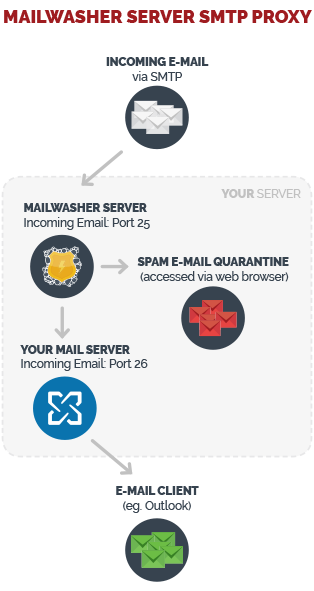
MailWasher Enterprise Server (MWES) works as a proxy, meaning it sits in front of your mail server collecting and processing all incoming mail.
You will notice a significant reduction spam along with reduced load on your mail server when MWES is installed and working.
MailWasher Enterprise Server (MWES) for Windows Server 2000, 2003, 2008, 2011, 2012.
MWES may be used with any Windows Mail Server like Microsoft Exchange 2000,2003,2007, 2010, 2013, SmarterMail, IMail, MailEnable and
any others.
• View detailed instructions for installing with Microsoft Exchange 2003.
• View detailed instructions for installing with Microsoft Exchange 2007/2010.
• View detailed instructions for installing with Microsoft Exchange 2013.
STEP ONE
Change the listening SMTP port from 25 to 26 for your mail server. (MS Exchange users see the instructions above as these are different for each version of MS Exchange)
STEP TWO
Run the mwes installer and follow the instructions on the screen. By default a 30 day trial period is setup on installation.
STEP THREE
On completing the installation, a browser window will launch taking you to the Setup Wizard at http://localhost:4044
Click the Start Configuration Wizard button to begin setup.
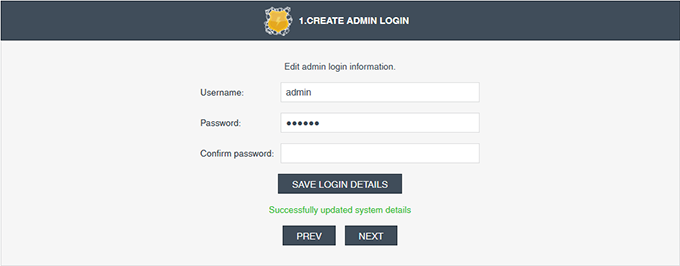
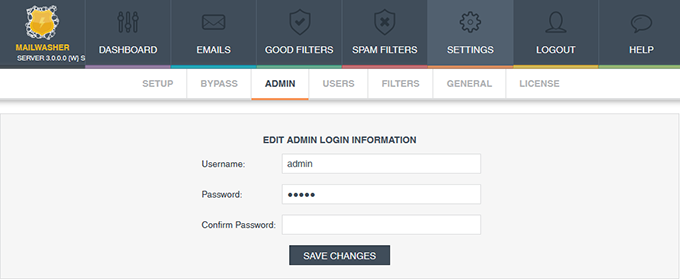
A. First you are asked to change your administrator password. This account will allow you to control the administration privileges. Do not give this out to users.
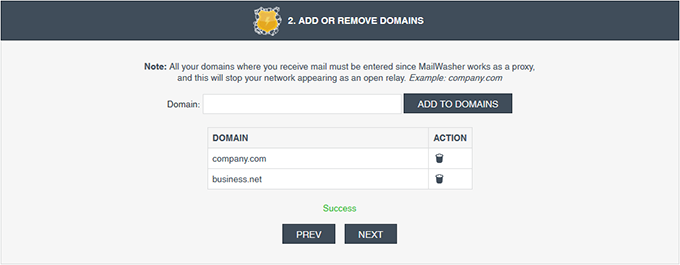
B. Next, enter all the domains you want to filter email through.
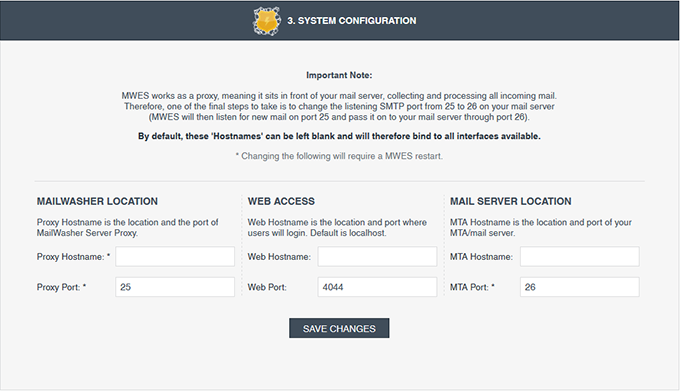
C. Now, change any of the default settings if needed. Most of the time you can leave the 'Hostname' blank so it will bind to all interfaces available.
Note: If you want to provide a daily emailed digest of blocked email to users, you'll need to enter a domain for the Web Hostname.
Users will then be able to retrieve email from http://companydomain.com:4044
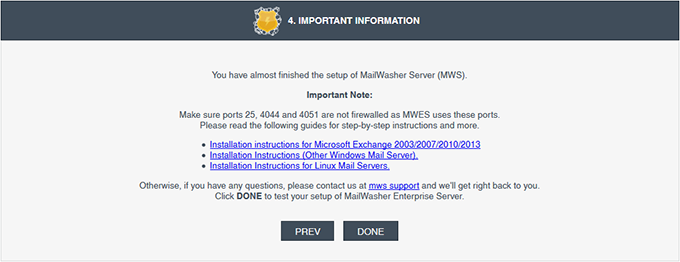
D. Finally, you are shown the thank you screen. Press Finish to begin the System Check.
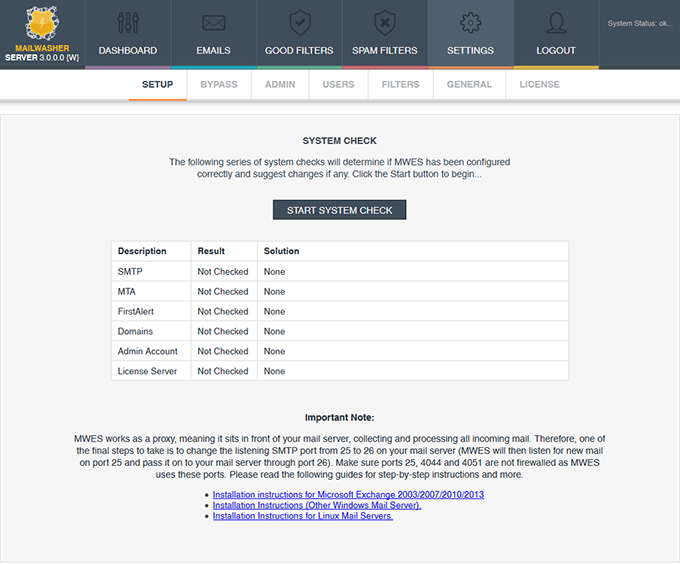
E. Upon completing the wizard you will be taken to the System Check screen to ensure you have setup your system correctly to work with MailWasher Server.
Press the Start system check button and MailWasher Server will run through its connectivity tests.
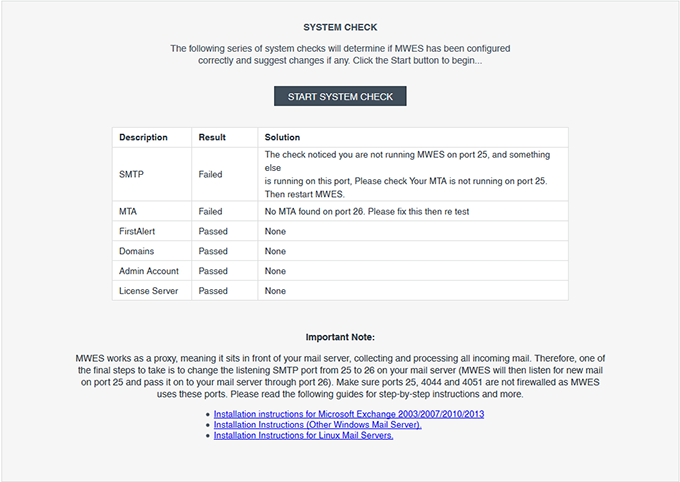
F. If there is a problem, MailWasher Server will notify you and suggest a fix. See step (4) below regarding ports or contact us at support.
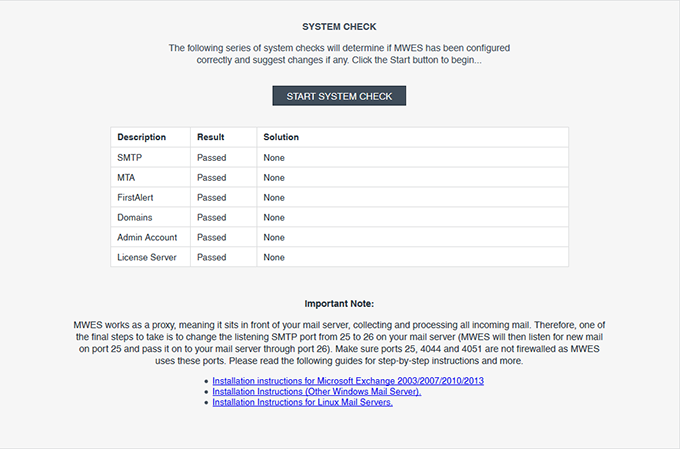
G. If your setup is correct, MailWasher Server will notify you it has 'Passed' all tests.
STEP FOUR
Make sure ports 25, 4044, 4051 (outgoing) and 80 are not firewalled as MailWasher Server uses these ports. Emails will arrive through port 25 and be checked by MailWasher Server.
If email is not quarantined it will then be passed onto the mail server through port 26. Microsoft Exchange is different, see the install instructions for Microsoft Exchange.
Please see the section Introduction to Using MailWasher Server.
Stop the 'MailWasher Enterprise Server' Service by going to Start>>Run and typing 'services.msc'. Locate 'MailWasher Enterprise Server' and stop the service.
Make a backup of the database (mwes.db) located in C:\Program Files\MailWasher Enterprise Server\data
Download and run the latest mwes.x.x.x.exe file. MailWasher Server will automatically upgrade itself from an older version.
Note 1: Version 3.0 introduces the use of wildcards in email addresses for the whitelist and blacklist, so any partial email addresses used in older versions will need to be edited to wildcard email addresses for them to work. eg. @hotmail now becomes *@hotmail.*
Note 2: If the user interface has some odd looking elements displaying after the upgrade, press CTRL + F5 to do a hard refresh and override the old cached user interface.
Uninstall MailWasher Server from the Control Panel -> Add/Remove Programs
If needed, you can Start/Stop/Restart MailWasher Server. In Administrative Services (go to Start >> Run >> type 'services.msc' and locate MailWasher Enterprise Server).
Creating a log file
If you installed MailWasher Server to the default location a log file is created in
C:\Program Files\MailWasher Enterprise Server\logs\
Go to the user interface >> SETTINGS >> GENERAL >> LOGGING
Change the Log Level to High.
Please zip this directory up and send it to us at mwes-support@firetrust.com
Frequently Asked Questions
Please see the Frequently Asked Questions for additional setup, general questions and troubleshooting issues.
There's also the forum for any questions.
Any other problems please email us.
MailWasher Enterprise Server (MWES) works as a proxy, meaning it sits in front of your mail server collecting and processing all incoming mail.
You will notice a significant reduction spam along with reduced load on your mail server when MWES is installed and working.
MailWasher Enterprise Server (MWES) for Linux in 32 and 64 bit versions.
MWES may be used with any mail server such as Sendmail, Postfix, QMail, Exim etc.
STEP ONE
cd mwes-xxxx then run script ./install as "root"
STEP TWO
Change the listening SMTP port from 25 to 26 for your mail server. (MS Exchange users see the instructions above as these are different for each version of MS Exchange)
STEP THREE
On completing the installation, a browser window will launch taking you to the Setup Wizard at http://localhost:4044
Click the Start Configuration Wizard button to begin setup.
A. First you are asked to change your administrator password. This account will allow you to control the administration privileges. Do not give this out to users.
B. Next, enter all the domains you want to filter email through.
C. Now, change any of the default settings if needed. Most of the time you can leave the 'Hostname' blank so it will bind to all interfaces available.
Note: If you want to provide a daily emailed digest of blocked email to users, you'll need to enter a domain for the Web Hostname.
Users will then be able to retrieve email from http://companydomain.com:4044
D. Finally, you are shown the thank you screen. Press Finish to begin the System Check.
E. Upon completing the wizard you will be taken to the System Check screen to ensure you have setup your system correctly to work with MailWasher Server.
Press the Start system check button and MailWasher Server will run through its connectivity tests.
F. If there is a problem, MailWasher Server will notify you and suggest a fix. See step (4) below regarding ports or contact us at support.
G. If your setup is correct, MailWasher Server will notify you it has 'Passed' all tests.
STEP FOUR
Make sure ports 25, 4044, 4051 and 80 are not firewalled as MailWasher Server uses these ports. Emails will arrive through port 25 and be checked by MailWasher Server.
If email is not quarantined it will then be passed onto the mail server through port 26.
Please see the section Introduction to Using MailWasher Server.
Do the following as root (assumes mwes-xxx.tar.gz is in root home directory) $ cd ~
stop mwes
$ /etc/init.d/mwesd stop
backup current mwes
$ mv /opt/mwes /opt/mwes.old
unzip new mwes
$ tar -xvzf mwes-xxx.tar.gz
Install new mwes
$ cd mwes-xxx
$ ./install
copy old database to new mwes installed location $ cp -v /opt/mwes.old/mwes.db /opt/mwes/
change owner of mwes database
$ chown mwes:mwes /opt/mwes/mwes.db
start new mwes
$ /etc/init.d/mwesd start
Note: No need to restart MTA
Note 1: Version 3.0 introduces the use of wildcards in email addresses for the whitelist and blacklist, so any partial email addresses used in older versions will need to be edited to wildcard email addresses for them to work. eg. @hotmail now becomes *@hotmail.*
Note 2: If the user interface has some odd looking elements displaying after the upgrade, press CTRL + F5 to do a hard refresh and override the old cached user interface.
1. cd mwes-xxxx
2. Run script ./uninstall as "root"
/etc/init.d/mwesd [start/stop]
Kill -3 "mwes pid" shall be used to kill the process NOT "kill -9" and start mwes
Creating a log file
If you installed MailWasher Server to the default location a log file is created in
\var\log\mwes
Go to the user interface>>SETTINGS>>GENERAL>>LOGGING
Change the Log Level to High
Please zip this directory up and send it to us at mwes-support@firetrust.com
Frequently Asked Questions
Please see the Frequently Asked Questions for additional setup, general questions and troubleshooting issues.
There's also the forum for any questions.
Any other problems please email us.
Setting up and using MailWasher is relatively simple. MailWasher will immediately begin blocking spam using its default settings. After adding users (if users will be accessing quarantine digest reports),
you may wish to add friends email addresses/domains to the whitelist to instantly allow friends emails through.
Bayesian filtering is useful to allow MailWasher to learn which of your organizations email is good and which is spam based on spam reporting and rescued email.
By default a 30 day trial period is enabled after installation and is extended by using a license key.
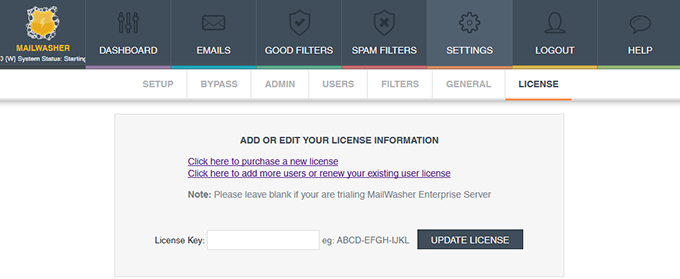
Please note, you do not need to enter a license key on the trial account screen (Settings>>License) during the trial.
The login screen is shown after setup at http://localhost:4044 or http://[companywebsite]:4044
Login with 'admin' as the username and your chosen password. 'password' is the default password if it has not been changed.
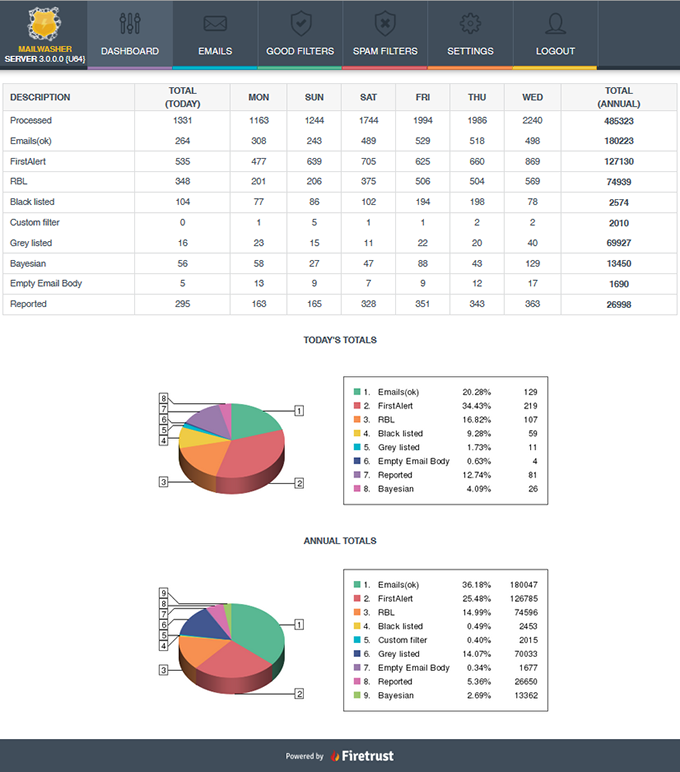
The monitor screen shows statistics of how mail is processed
Processed: Indicates how many emails have been processed.
Emails(ok): Emails which have passed through all filters except graylisting.
FirstAlert: Emails stopped by Firetrust's FirstAlert signature database.
RBL: Emails stopped by real-time blackhole lists.
Blacklisted: Emails stopped by the blacklist.
Custom filter: Emails stopped by custom filters.
Gray listed: Emails which have been gray listed.
Bayesian: Emails caught by the bayesian learning filters.
Empty Email Body: Emails stopped with an empty body.
Reported: Emails caught by RBL's and greylisted older than 2 hours are uploaded to FirstAlert for analysis.
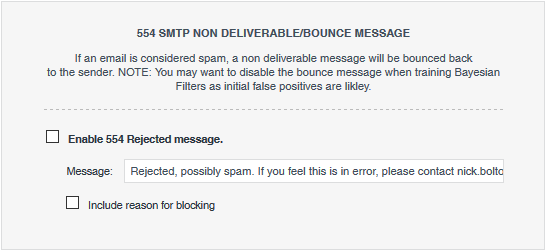
Enable if you want to send a non-deliverable message back to the sender if an email is considered spam. NOTE: You may want to disable the bounce message when training Bayesian Filters as initial false positives are likely.
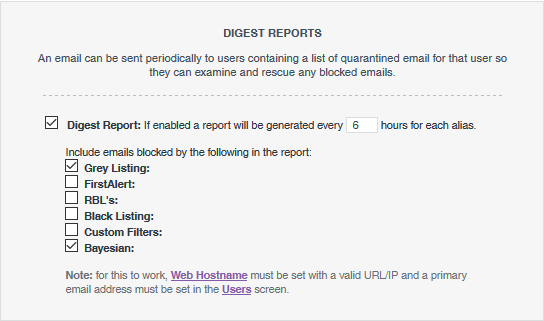
Users can be sent an email every X hours with a list of their quarantined email. The user can go through this list and rescue any email they want to unblock. It may be best to avoid adding RBL's and FirstAlert to the digest as these catch a lot of spam and the digests will be very long and tedious to look through. See Setting up daily digests.
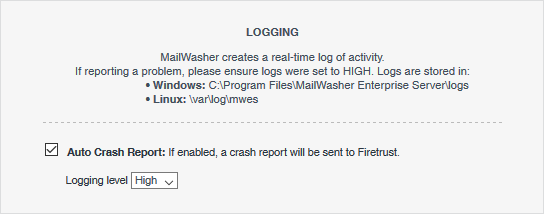
Useful for diagnostics as the logs are real-time. Set to High to get any useful information.
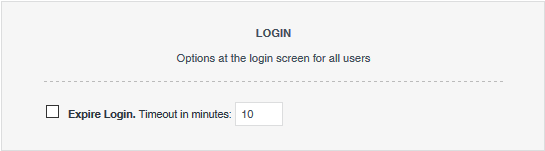
The login screen can be set to expire after X minutes of inactivity.
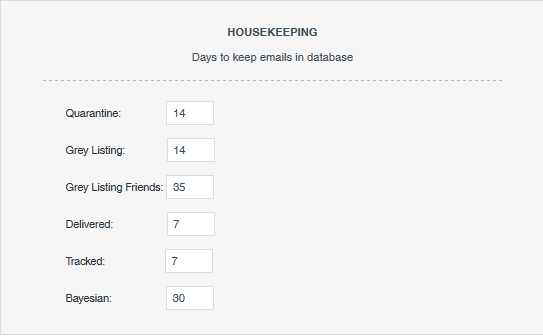
These settings determine how long MWES will keep items in the database. It can be useful to reduce these if disk space is low.
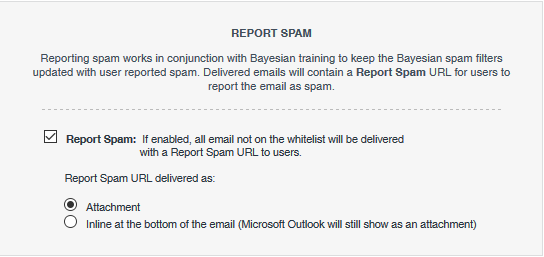
Users may wish to report spam. Reported spam is used to train the bayesian learning filters about which emails are spam. A 'Report Spam' link is added as an attachment or added to the body of the email as a footer, although Microsoft Outlook users always have the Report Spam link added as an attachment. The Report Spam link is added to all emails except where the email address is whitelisted.
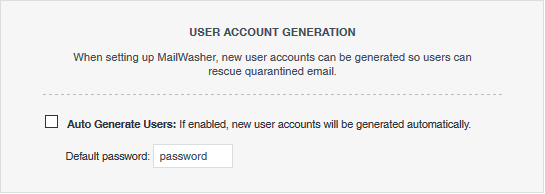
If this is enabled, when an email is first received for a mailbox user (a mailbox user is first verified by the MTA), MWES will automatically set that user up with a username and password (default: password) so the user will be able to login to view their quarantined spam.
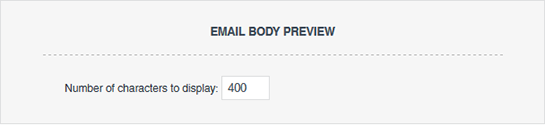
Change this to show how much of the body of an email is able to be previewed when hovering the mouse over an email in the Quarantine/All Emails areas.
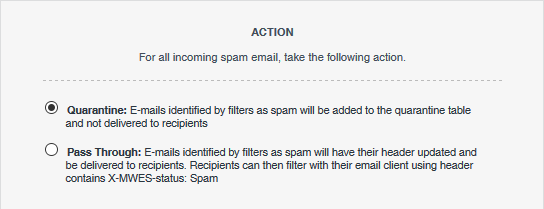
The filter settings screen enables configuration of general settings related to filters.
Action - Choose what happens to incoming email identified as spam.
• Quarantine - Sent straight to the quarantine screen and users must login to manage their blocked spam, or
• Pass through - Spam headers are marked with 'X-MWES-status: Spam' and delivered to end-users to be filtered in their email client.
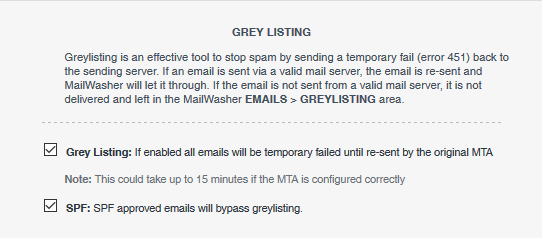
When emails arrive and they're not whitelisted or have been let through before, a 'Please try again' message is sent back to the sender. A legitimate and correctly setup MTA will re-send the email and it will be let through by MWES. This is useful to block spam sent by viruses as the email won't be re-sent. A sending MTA may take up to 15 minutes to re-send the email, therefore it's useful to enable the SPF option as that will bypass greylisting for legitimate MTAs and speed up email deliverability.
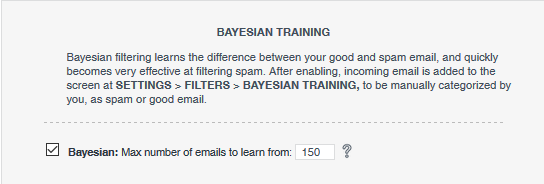
Bayesian filtering learns the difference between your good and spam email, and quickly becomes very effective at filtering spam. See Bayesian filters category below.
MailWasher uses a cache of spam results to quickly catch new spam. If an email sender is continuously incorrectly categorized as spam (eg. from a rogue RBL result), clearing the cache will remove the entry from the cache.
Adding users allows end-users access to the quarantine and greylisting screens via a web browser so they can view their blocked email and if necessary, rescue the blocked email so it is delivered to their inbox.
You'll need to decide if you want to enable:
• Global Access: All users are given the same login to the quarantine area to search for their blocked email. Only the from: and subject: are visible and any rescued email is sent to the original recipient.
This approach might not be desirable for privacy reasons.
• Individual Access: Each user has their own unique login to the quarantine area and they can only search for their own blocked email and any aliases which have been setup for them.
Any rescued email is sent back to their inbox.
If a user account is created with a username and password, but with no email address, that account becomes a global quarantine account and all users will use that same quarantine screen to search for their blocked email.
This approach might not be desirable for privacy reasons.
One global user is setup (no email addresses are entered)
NOTE: Anyone can search for their blocked email from the same Quarantine screen, search through all emails in the 'All Email' screen or look at and rescue delayed email in the Grey Listing screen.
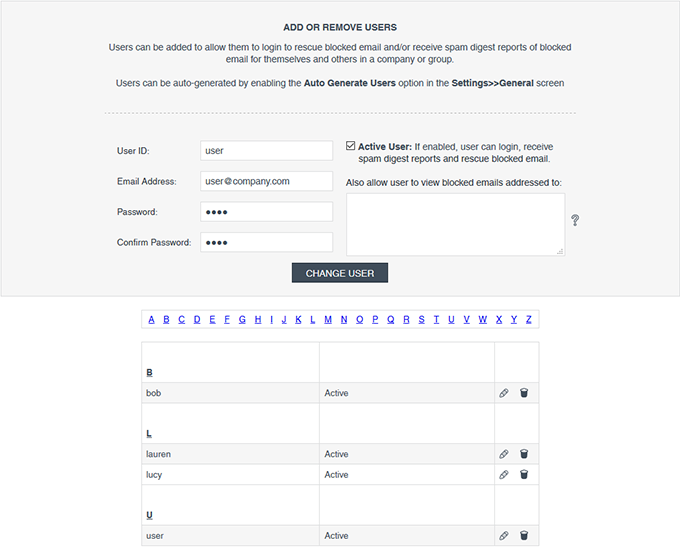
Individual user logins are created by creating a username and password, along with adding the users email address and a password.
When a user logs in to the quarantine area they will only be able to search for blocked email addressed to themselves, and optionally any other alias/email addresses in the
Also allow user to view blocked emails addressed to: area.
For an Individual User Account Login the User can view their quarantined email. Users can move their mouse over the subject line to view the body (first 200 characters by default -
preview length can be changed in Settings >> General)
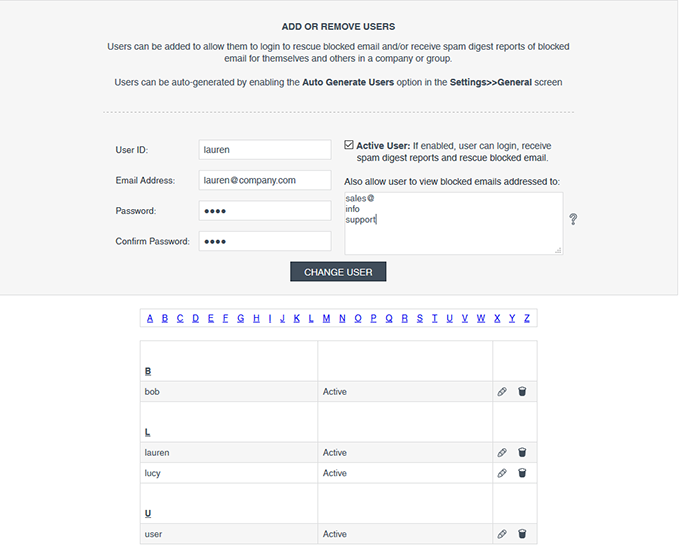
User setup with aliases
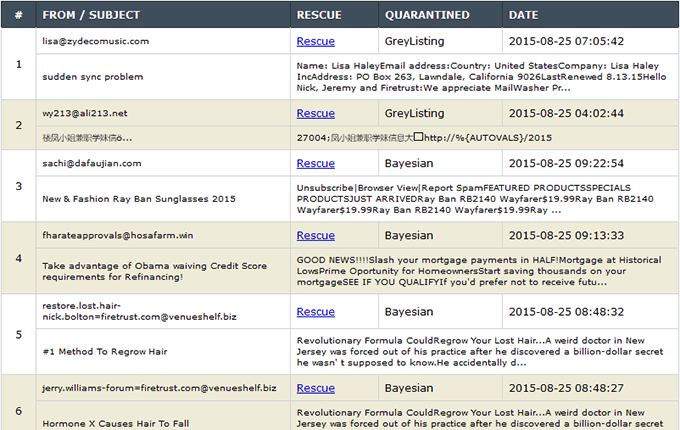
MWES can be setup to send digests of blocked email at certain time intervals. These digests list blocked email and the user can rescue any email from within the digest.
First, go to the Settings>>General screen, then down to Digest Report: and enable this. Select how often you want the digests to be delivered
(digests are sent every X hours from when MWES is started), then select which spam tools you want to see blocked emails for.
There also needs to be a valid web hostname (URL or IP address) so external users can rescue emails from that web hostname. Set this up in Settings>>Setup>>System Configuration
Note: It is recommended to select Greylisting and Bayesian as these are the spam tool most likely to catch legitimate email initially until they have been working a while.
Also select Custom Filters, if you have entered any custom filters to check they are working correctly.
FirstAlert and RBLs block a lot of spam, so you may want to avoid adding these to the digests as the digests will be very long and tedious to look through.
Next, you will need to setup your users to receive these digest reports.
Go to Settings>>Users and enter the user login details and their email address and check the box 'Active'.
Add in any email address or aliases or part email address (each on a new line) for which the user wants to receive.
eg.
support
info@company.com
admin@
Add more users as required who need to receive digest reports.
Digests look like this:
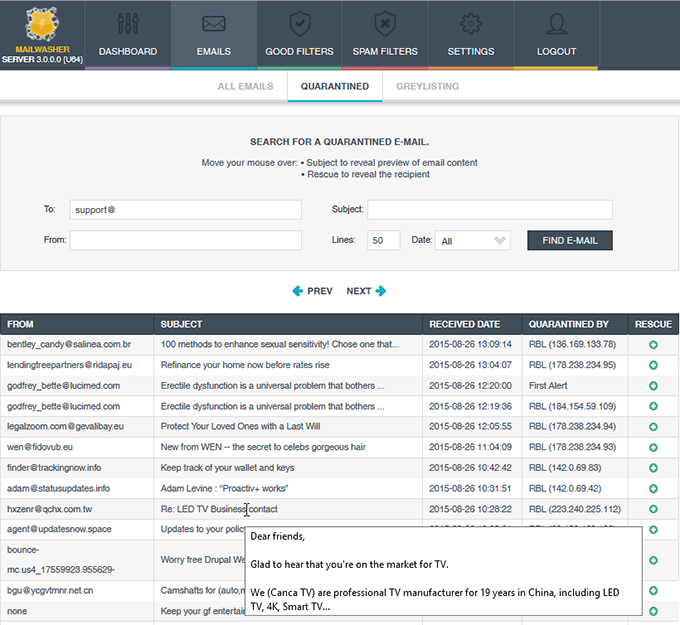
After login, you'll be taken to the Quarantine screen where you can search for emails and if necessary, rescue them. All rescued emails are sent to the original recipient.
This quarantine screen is available to the end-users via login to a web browser so they can search for blocked email using a number of search criteria:
• The From: field
• The To: field
• The Subject
• The date
By default, when a user logs in they will see the last 50 emails which have been blocked. They can either change the number of emails to view on one page, or move through the pages by clicking the 'Previous' or 'Next' links.
You can move the mouse over the subject line to view the body (first 200 characters by default - the preview lines can be changed in Settings >> General)
If a user finds an email which they want to rescue, they click the 'rescue' link and that email is delivered to their inbox. If the mouse hovers over the link, it will show who the rescued email will be sent to.
When an email is rescued, the senders email address is automatically added to the friendlist so it is not blocked in the future and the rescued email is delivered to the users inbox.
The rescued email is shown in green in the quarantine screen for easy reference.
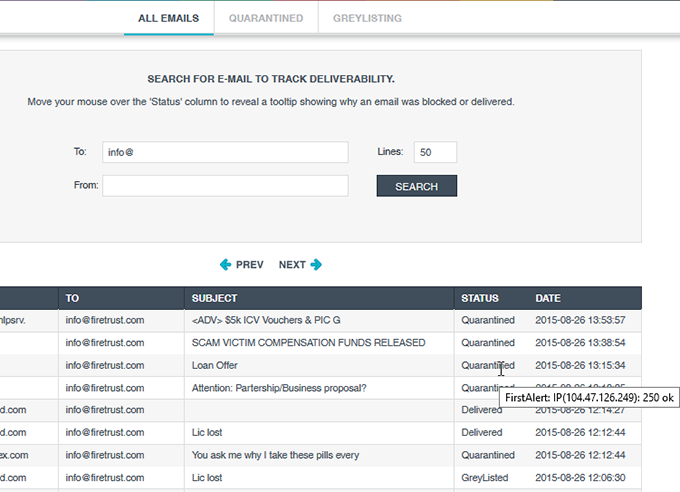
The All Emails screen shows all emails received by MWES. Users can search for an email to see if it was delivered or otherwise. Moving the mouse over the Status column items shows the reason for Quarantine, Delivery or otherwise.
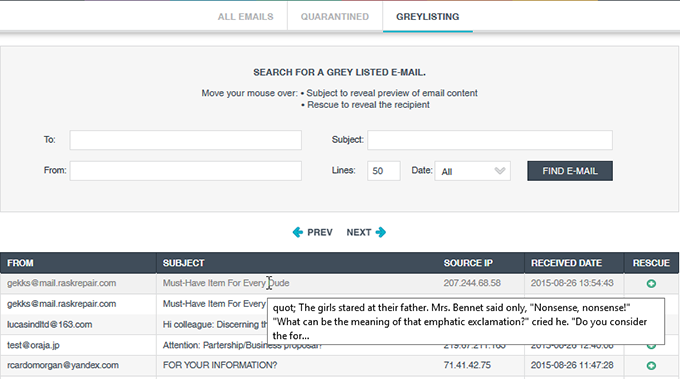
Greylisting is an effective tool to stop spam by sending a temporary fail back to the sender of the message.
If the sender is sent via a valid MTA, the message is re-sent and MWES will let it through. If the message is not sent from a valid MTA it is not delivered and left in the MWES greylisting quarantine area.
Greylisting is enabled by default in Settings >> Filters >> Settings
NOTE: Valid messages can be delayed by up to 15 minutes using this method since the sending MTA has to re-send the message.
You can always check the Email>>Quarantine area to see which messages are due to be resent, and thus rescue them in which case they will be added to an internal IP Whitelist.
See below, the light grey message at the top is within the 15 minute time period to be re-sent.
Once an email senders email has been delivered once, they are let through instantly the next time they send an email.
NOTE: Enable SPF (Settings >> General), so email is checked against SPF records and if matched successfully it bypasses greylisting.
Users can move their mouse over the subject line to view the body (first 200 characters by default - preview length can be changed in Settings>>General)
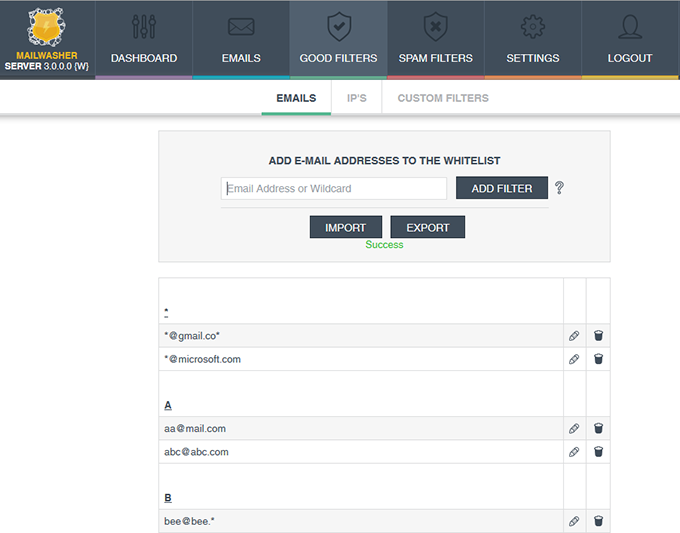
You can setup a whitelist which will allow any email address on the whitelist to bypass all the spam filters.
Note: You don't need to add your email address or domain to the whitelist, as MWES will detect that you're working from a local LAN.
Spammers frequently use your own email address to bypass filters, so leave your company email addresses off the whitelist.
Note: You can also use wildcards * and ?
? will match any one character and * will match zero or more unknown characters.
E.g. w?lly@hotmail.* will match: willy@hotmail.com,wally@hotmail.co.uk and wally@hotmail.com
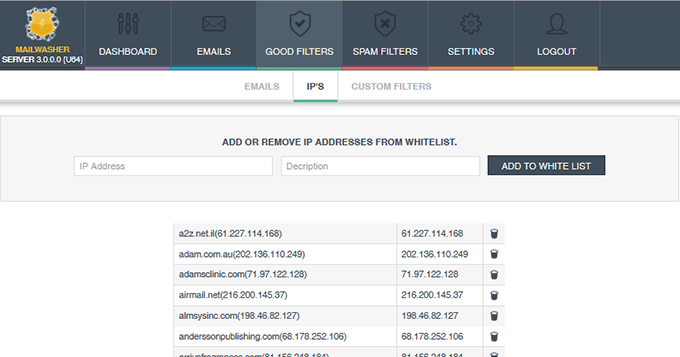
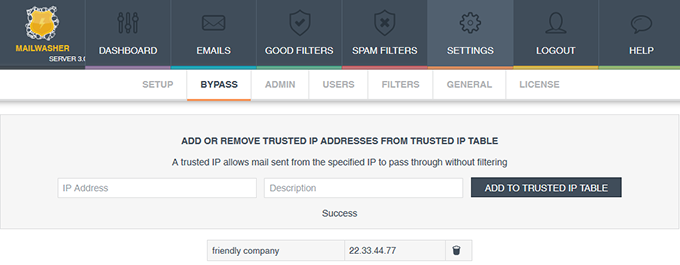
The IP Whitelist is automatically populated by the greylisting feature when an email is rescued. In this case the domain and IP address is added so those emails are let through automatically next time. Alternatively you can add your own. IP ranges can be expressed in CIDR notation.
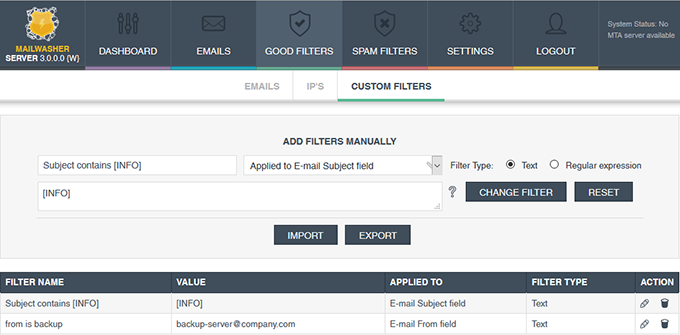
You can setup a custom filter for good email, so for example, email matched against a particular subject line will bypass the spam filters.
Filters can be either plain text or regular expressions (regular expressions syntax from Regexlab)
When filtering multiple values:
To use OR operator, choose ‘Reg. expression’ and separate each filter value with a pipe e.g.
one|two|three|four
to use AND separate each filter value on a new line. e.g.
One
Two
Three
Four
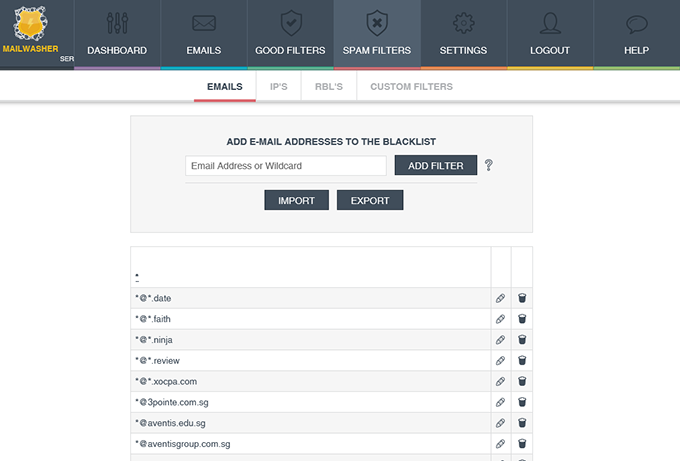
You can setup a blacklist which will stop any email with that blacklisted email address from passing to end users inboxes.
Note: You can also use wildcards * and ?
? will match any one character and * will match zero or more unknown characters.
E.g. w?lly@hotmail.* will match: willy@hotmail.com, wally@hotmail.co.uk and wally@hotmail.com
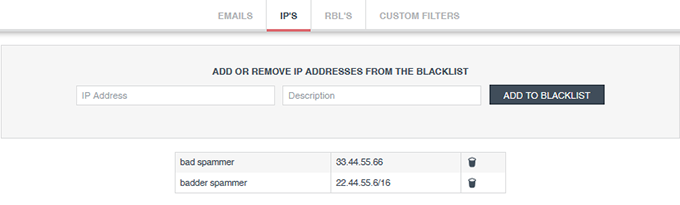
You can add IP addresses to the IP blacklist which will stop any email with that blacklisted IP address from passing to end users inboxes. IP ranges can be expressed in CIDR notation.
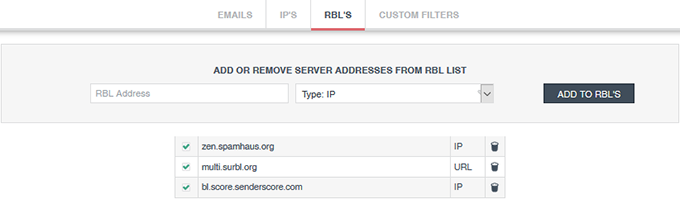
RBL's are used to block known sources of spam. MWES supports both URL and IP based lists.
You can setup a custom filter for blocking spam email, so for example, email with a matched subject line will be caught and quarantined.
Filters can be either plain text or regular expressions (regular expressions syntax from Regexlab)
When filtering multiple values:
To use OR operator, choose ‘Reg. expression’ and separate each filter value with a pipe e.g.
one|two|three|four
to use AND separate each filter value on a new line. e.g.
One
Two
Three
Four
Bayesian filters learn the difference between your good email and spam email and become very accurate after a brief period of training.
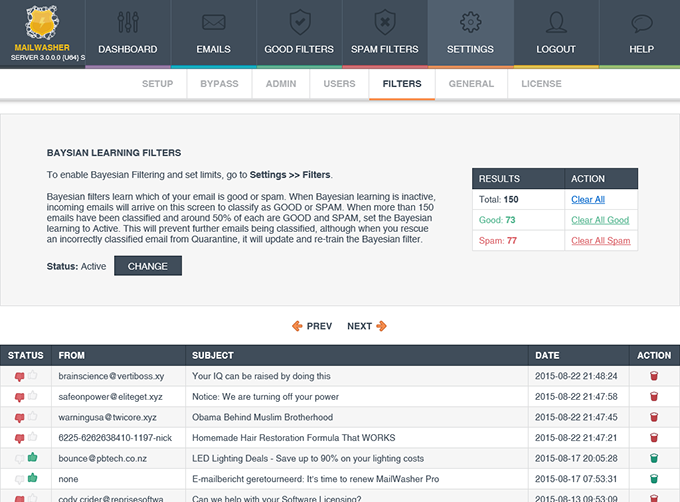
After enabling the Bayesian Filter (Settings >> Filters >> Settings) and setting the amount of email to train, incoming email is collected in the Bayesian screen (Settings >> Filters >> Bayesian Training).
On this Bayesian Training screen, once you have the recommended number of email listed, you mark email as good (thumbs up) or spam (thumbs down). Ideally you want around 50% spam and 50% good email.
When you are ready to use the bayesian filters, click the CHANGE button to make the filters active.
The incoming email collected to the Bayesian Training screen will stop and the bayesian filters will start classifying your incoming email.
Note 1 - You may wish to disable bounce/undeliverable notifications (Settings >> General) as some false positives are likely at the beginning of bayesian training.
Note 2 - Rescuing an email from Quarantine will add the email to the Bayesian Training screen as a good email and update the bayesian filters.
Note 3 - You may wish to enable Spam Reporting (Settings >> General) as any spam reported will update the bayesian filters. Spam Reporting appends a spam reporting link to all non-whitelisted incoming email.
Note 4 - You may wish to add legitimate email addresses to the whitelist to avoid the bayesian filter entirely. That way the bayesian filter will only need to be trained on outlying legitimate emails.
Recommended number of emails to train bayesian is
40 - 100 for a site with a small amount of incoming email.
100 - 200 for a medium sized site
200 - 400 for a large site
You can see the thumbs up (good) and thumbs down (spam) icons used to classify email for training.
Reporting spam by users is helpful in that it helps train the Bayesian Filters so they're kept up to date.
Users' incoming non-whitelisted email will contain a 'Report Spam' link which they can click to report an email as spam.
This link will be either embeded in the body of the email, or as an attachment (Microsoft Outlook always converts it to an attachment).
Report Spam can be enabled in Settings >> General
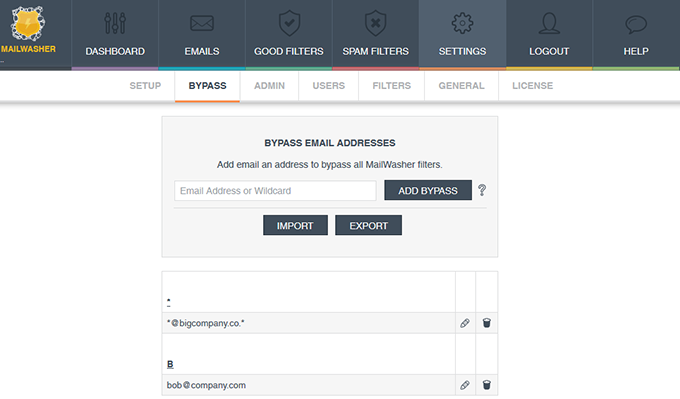
Email addresses and domains can be added to bypass all MWES filtering and be delivered straight to the MTA.
Note: You can also use wildcards * and ?
? will match any one character and * will match zero or more unknown characters.
E.g. w?lly@hotmail.* will match: willy@hotmail.com, wally@hotmail.co.uk and wally@hotmail.com
A trusted IP allows mail sent from the specified IP to pass through MWES without filtering.
After the 30 day free trial is finished, if you want to keep MWES you must purchase a user license appropriate for the number of users you have.
Once you have purchased the license you will be sent a 12 digit license key. Enter these details in to the Settings >> Product License screen to continue using MWES.
The Admin Details screen is used for the administrator to change their username and password to access the software.

Copyright © Firetrust Ltd Established 2000


